Published: December 8, 2025 • 20 min read • By UPLYNK
Power Apps Coding Standards Every Organization Should Follow
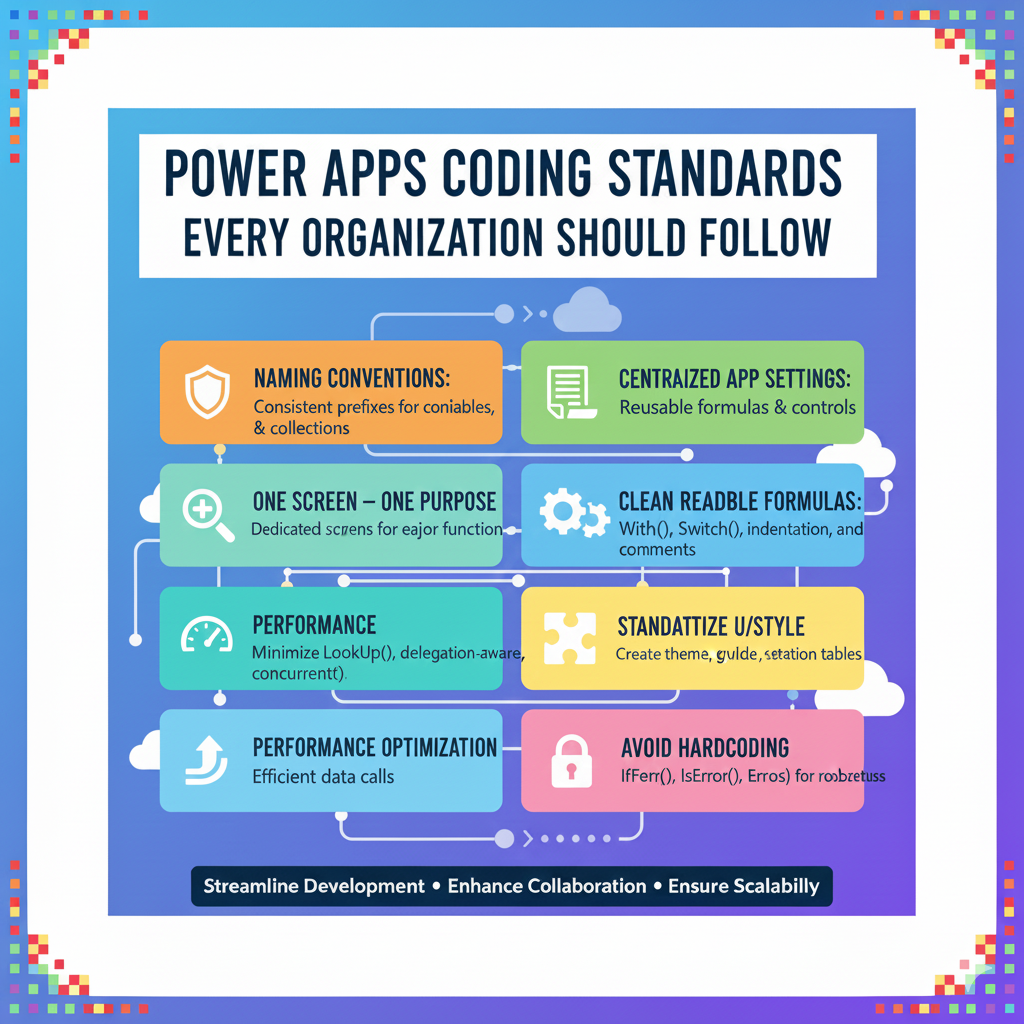
As Power Apps adoption grows across organizations, development teams often face an unexpected challenge: inconsistent coding practices.
Different makers build apps differently - naming conventions vary, formulas become unreadable, screens get cluttered and performance issues start appearing.
To scale Power Apps successfully, you need something more than skill - you need standards.
In this blog, we’ll walk through the coding standards every organization should follow to build apps that are clean, fast, secure, maintainable and ready for enterprise growth.
⭐ 1. Use Consistent Naming Conventions
Poor naming is the fastest way to make an app unmaintainable. Every control, screen, variable and component should follow a clear, predictable pattern.
Controls
Use a prefix + purpose naming style:
| Control Type | Prefix | Example |
|---|---|---|
| Button | btn | btnSubmit |
| Label | lbl | lblStatusMessage |
| Text Input | txt | txtCustomerName |
| Gallery | gal | galProjects |
| Component | cmp | cmpHeader |
Variables
- Global variable: gblUserRole
- Context variable: locRecordId
- Collections: colProjects, colFilteredData
This ensures new developers instantly understand what they’re working with.
⭐ 2. Follow the "One Screen - One Purpose" Rule
Each screen should represent a specific function like view list, view details, create record, edit record etc.
Avoid the anti-pattern:
❌ A single giant screen with all controls hidden/visible based on flags.
Benefits of dedicated screens:
- Simpler logic
- Improved performance
- Easier maintenance
- Better navigation experience
⭐ 3. Centralize Your App Settings
Avoid scattering configuration values across formulas. Instead, use a single settings record or collection.
Example:
Set(gblSettings, {

    PrimaryColor: RGBA(56, 96, 178, 1),

    ApiBaseUrl: "https://contoso.com/api/",

    PageSize: 25

});
Now you can manage everything from one location.
⭐ 4. Write Clean, Readable Formulas
Unreadable formulas are one of the biggest challenges in Power Apps.
Follow these rules:
✔ Break long formulas using With()
With(

    { filtered: Filter(colProjects, Status = "Active") },

    CountRows(filtered)

)
✔ Format your formulas with indentation and comments
/* Load active projects */

ClearCollect(

    colActiveProjects,

    Filter(colProjects, Status = "Active")

);
✔ Avoid nested IFs - use Switch when possible
Switch(

    gblUserRole,

    "Admin", Navigate(scrAdmin),

    "Manager", Navigate(scrManager),

    Navigate(scrHome)

)
Readable code = maintainable code.
⭐ 5. Optimize for Performance
Slow Power Apps hurt user experience and adoption.
Follow these performance rules:
✔ Minimize the number of LookUp() calls
Store values in variables or collections instead of recalculating.
✔ Use delegation-aware formulas
Avoid non-delegable functions like:
- SortByColumns with multiple columns
- AddColumns with complex logic
- ForAll with record-level updates
✔ Load data once on App start
Use App.OnStart to prepare data.
✔ Use concurrent loading
Concurrent(

    ClearCollect(colAccounts, Accounts),

    ClearCollect(colProjects, Projects)

)
⭐ 6. Use Reusable Components
Reusable components:
- Reduce duplicated logic
- Standardize UI
- Improve performance
- Speed up development
Common components:
- Header + Footer
- Pagination
- Notification bar
- Search + Filter bar
Every organization should maintain an internal component library.
⭐ 7. Standardize Color, Style & UI Patterns
A consistent UI improves user trust and makes the app look enterprise-grade.
Create a style guide collection:
Set(gblTheme,{

    Primary: RGBA(0,121,187,1),

    Secondary: RGBA(244,244,244,1),

    Error: RGBA(255,0,0,1),

    Radius: 6,

    Padding: 12

});
Use these theme values everywhere.
⭐ 8. Avoid Hardcoding
Hardcoding values makes apps fragile.
Avoid:
- Hardcoded URLs
- Hardcoded IDs
- Hardcoded user emails
- Hardcoded feature flags
Use:
- Environment variables
- Collections
- Settings tables
- Dataverse configuration tables
⭐ 9. Error Handling Is Not Optional
Enterprise apps need robust error handling.
✔ Wrap risky operations with IfError()
IfError(

    Patch(Projects, ThisItem, { Status: "Active" }),

    Notify("Error updating project", NotificationType.Error)

)
✔ Use IsError() for validation checks
✔ Use Errors() to get Dataverse error messages
Without error handling, debugging becomes impossible.
⭐ 10. Use Git + ALM for Version Control
Do not rely solely on manual backups.
Standard enterprise ALM setup:
Dev → Test → Prod environments.
- Managed solutions
- Github or Azure DevOps
- Automated deployments
- Pull requests with code reviews
ALM ensures stability and prevents accidental app overwrites.
⭐ 11. Document Everything
At minimum document:
- App purpose
- Data sources
- Variables
- Components
- Naming conventions
- Error handling flows
Good documentation reduces dependency on the original creator.
Conclusion
Adopting coding standards is not a “nice to have” - it’s essential for any organization serious about Power Apps. Standards create consistency. Consistency creates stability. Stability enables scale.
Whether you have 5 makers or 500, these coding practices will help you build:
- Apps that run faster
- Code that’s easier to maintain
- Experiences that users love
- Solutions that grow with your organization
“At UPLYNK, we’re committed to empowering the Microsoft Dynamics 365 community through insightful blogs, practical tutorials and real-world implementation guidance — helping professionals learn, grow and stay ahead in the ever-evolving D365 ecosystem.”